 Magpie
How to undo a bulk edit in Shopify
Once you click Save in the bulk editor, Shopify has no undo. Pressing Ctrl+Z after saving does not bring your old values back, and the store activity log did not list the change on our test store. To recover, stop editing, find your old values in an earlier export or another record, and put them back in a small, careful repair.
1Stop editing and see how the value spread
Do not run a second bulk edit to fix values by guessing. A rushed edit across multiple rows can overwrite extra fields or apply incorrect figures to products that were fine.
Shopify designed the bulk editor to apply changes across entire selections quickly:
"You can use the bulk editor tool to make changes to multiple products and product variants at the same time."
A value typed once can land on many products. When several cells are highlighted, the cell with the outline is the one you type in:
"When multiple cells are selected, apply any edits to the outlined active cell to update all selected cells."
Dragging spreads a value the same way:
"Apply the value of a cell to the cells below or above it: Click and drag the cell's fill handle across the cells below or above."
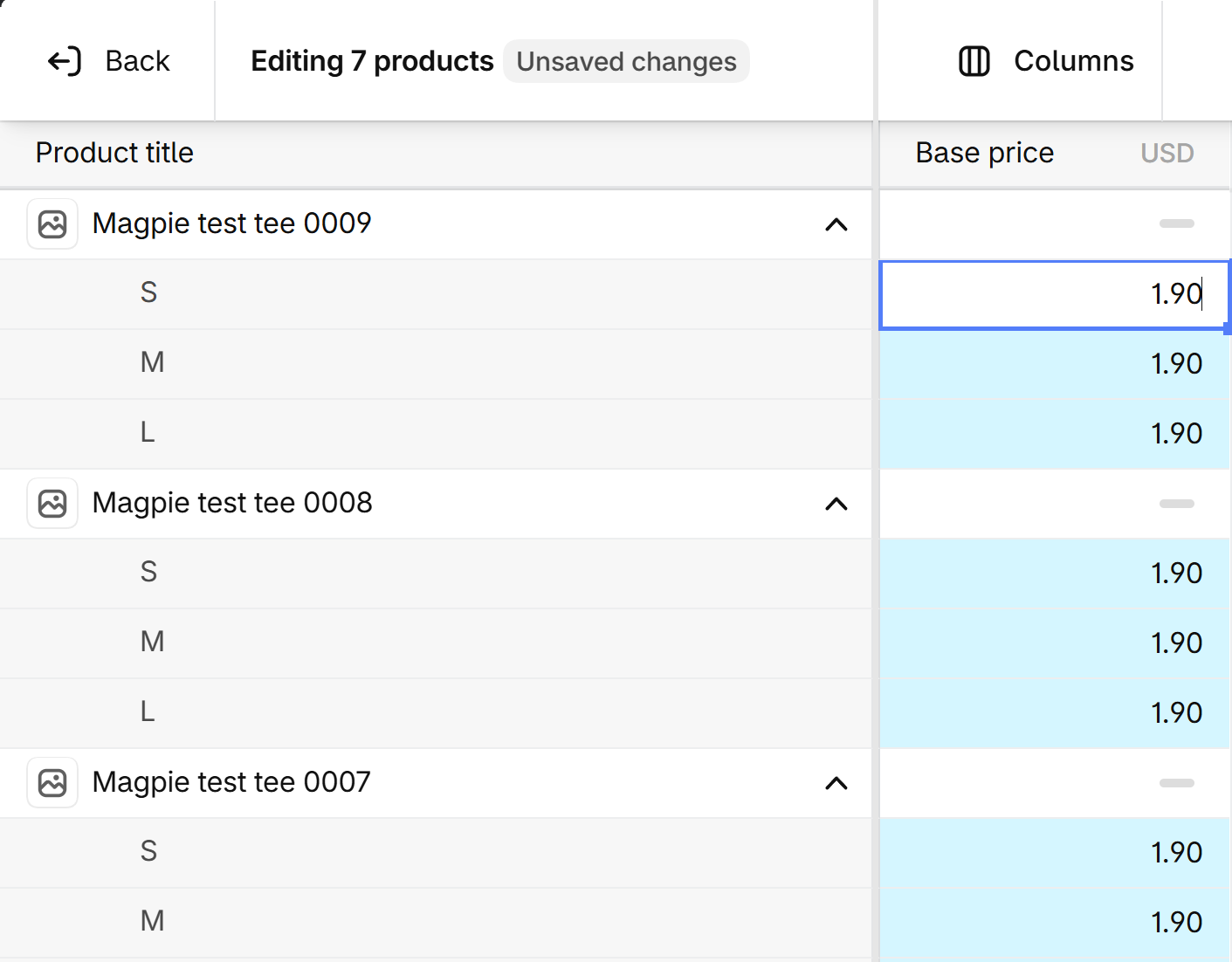
On our test store, selecting the Base price column across 7 products (21 variants) and typing 1.90 replaced every cell in that selection. Once you click Save, those values are live. Pressing Ctrl+Z after saving only removed one character from the cell being edited; every saved price stayed at 1.90.
Note down which products you were editing or the filter you used to view them, and leave the editor screen.
2Check where your old values still live
Shopify's help page for the bulk editor says nothing about undoing a save or viewing past values.
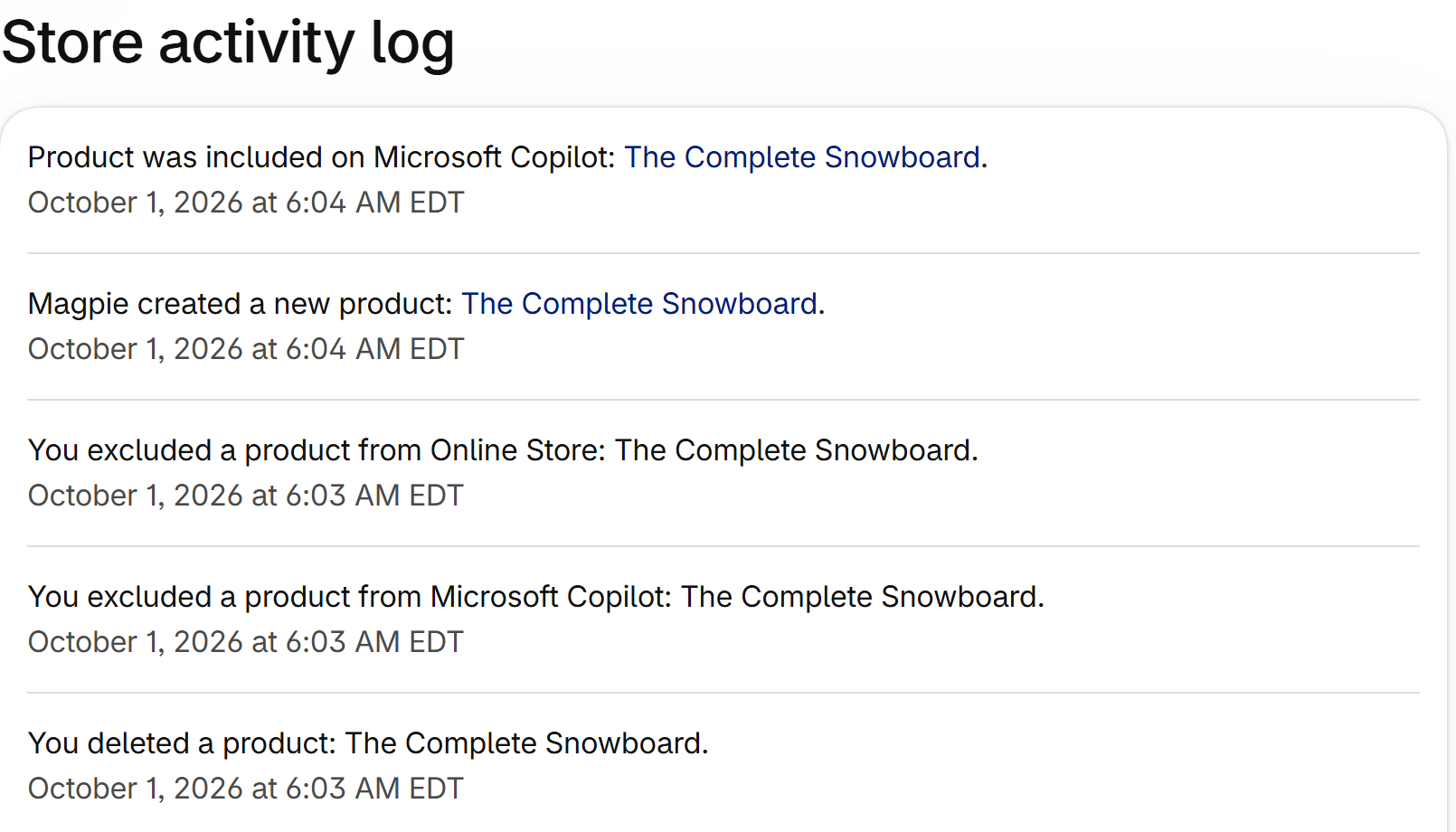
When we checked our test store's activity log a few minutes after saving the bulk price change, the change was not listed.
Search these sources in order to locate the original values:
An export made before the edit
Check your Downloads folder and email inbox for a recent product CSV file. If you exported your catalog using Products > Export prior to the change, that file contains the exact values as they were.
Past customer orders (for prices only)
If the bulk edit changed your prices, check past orders under Orders. Shopify orders retain the historical price each variant sold at. This will not reveal values for products that never sold, but it gives you the exact figures for your active sellers.
Inventory adjustment history (for stock quantities only)
If your bulk edit changed inventory numbers rather than prices, Shopify keeps a separate log for quantity changes:
"Inventory changes are automatically recorded so that you can see who made the change, when it happened, and how it affected your quantities."
Each line shows the change and the new total:
"The numbers under each of the inventory states display the adjusted quantity first, and the new total quantity second."
The history only goes back 180 days:
"You can view only the last 180 days of inventory adjustment history for a product or variant."
And you read it one variant at a time:
"you can't view the inventory adjustment history for all of the variants simultaneously."
Prices, titles, categories, and vendors are not inventory, so the inventory history will not record changes to those fields.
Notes, supplier price sheets, or web archives
Look for original wholesale sheets, your internal product lists, or public snapshots on web.archive.org. If the Wayback Machine indexed your storefront recently, cached product pages will show what was displayed publicly.
3Put the old values back safely
Once you locate the previous figures, restore them systematically to avoid fresh errors.
Build a minimal repair CSV
If you have an older export or structured figures, do not import an entire catalog spreadsheet back into Shopify. Create a small repair CSV containing only the identifiers and the specific column you need to correct.
For variant details like price or SKU, keep URL handle, Title, Option1 name, and Option1 value alongside the field you are fixing. Leaving out option columns can collapse your variant structure. For full formatting instructions, follow the rules in How to undo a bad CSV import in Shopify.
Test on two or three items first
Before running a wide update or re-entering the bulk editor across dozens of items, edit two or three products first. Verify that the correct values save and display properly on both the admin side and the live storefront.
Enter corrections manually if the list is small
If the mistake only affected a handful of products and you found the numbers on past orders, open the items directly in the admin product page and enter the figures by hand instead of using bulk tools.
4Protect future bulk edits
Bulk edits apply quickly, but they carry no built-in safety net. Put these habits in place before editing:
- Export first: Go to Products > Export and download your catalog immediately before making bulk adjustments.
- Edit in small batches: Apply edits to a single page or small filtered group rather than selecting all products across your store.
- Inspect active outlines: Before typing a value, check whether a single cell or an entire highlighted column is outlined.
How Magpie helps
Magpie backs up every product once a day and keeps backups for 30 days.
When an accidental bulk edit saves bad data across your catalog, open the Magpie backup taken before the edit and click Check for changes. Magpie compares your live store against the backup and lists every product that changed along with the modified fields (such as Price).
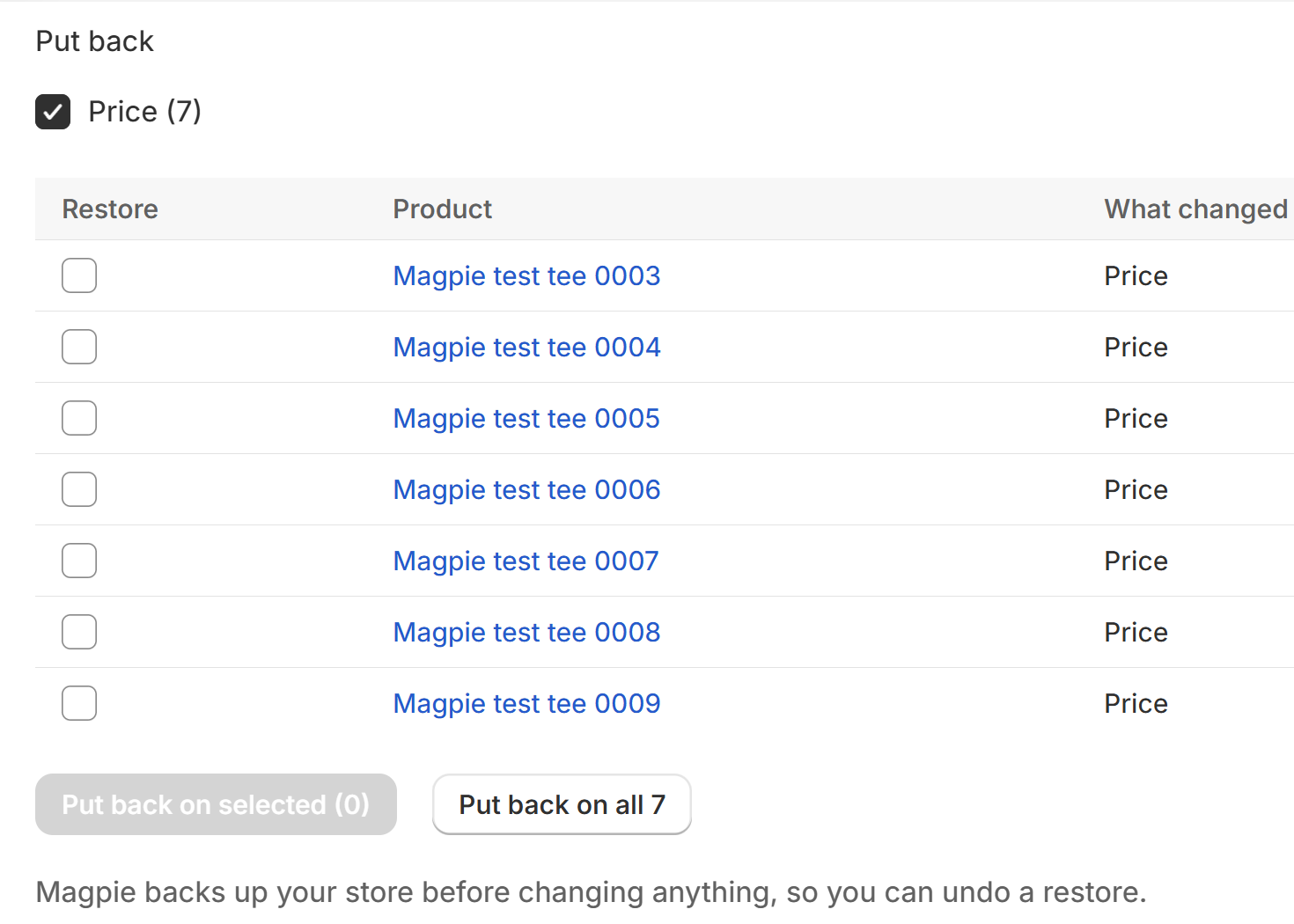
Select the fields you want to restore and click Put back on all (or Put back on selected). Magpie automatically takes a new backup of your store right before restoring, ensuring the restore itself can be undone if needed.
On our test store, Magpie identified the 7 modified T-shirts, restored all 21 mistyped variant prices back to their original values in one step, and a fresh check confirmed every product matched the backup.
Magpie can only restore changes made after it was installed and backed up your products. Price: $9 per month or $90 per year, 7-day free trial. The app is in review on the Shopify App Store; the link will appear here once review is complete.