 Magpie
How to undo a bad CSV import in Shopify
Shopify has no undo button for CSV imports, and once an import starts, you cannot cancel it. There is also no button that rolls your products back to how they were yesterday. To fix your catalog, you need to find where your old product values still live, build a small repair file, and import those values back over the broken ones.
1Stop and do not re-import yet
Do not try to fix the problem by immediately editing your spreadsheet and importing it again. A rushed second import can wipe out more data than the first one did.
Shopify treats blank cells and missing columns in very specific ways during an import:
"If a non-required column in the import CSV file is blank, then the matching value in the product list is overwritten as blank."
If you exported a file, opened it in spreadsheet software, deleted descriptions to make the sheet easier to read, and imported it back, Shopify blanked every one of those descriptions in your store.
Columns that depend on other columns can also destroy your variants:
"If a non-required column is included in the import CSV file that relies on other column data not included in the file, then existing data is deleted or removed. For example, if the SKU column is included in the import CSV file, but not the Option1 value and Option1 name columns, then the product variant option is deleted."
If you sorted the spreadsheet before importing, variants and image links can come loose from their products:
"Importing a CSV file that has been sorted might overwrite your existing products with bad data, which can't be recovered."
Step away from the import screen. Leave the catalog as it is until you have located your original data.
2See what the import touched
Before repairing anything, you need to understand how many products were modified and when the job finished.
Shopify does not provide an import history page:
"Product imports started with a CSV file can't be canceled once they begin, and you can't view a history of past imports. To review recent changes made by an import, check your store's activity log."
To view recent events, open your Shopify admin and navigate to Settings > General > Resources > Store activity log.
The Store activity log has clear limits:
- It is view-only.
- It cannot be exported.
- It shows at most 250 results.
The log records actions alongside who took them: a specific staff member, an app, a sales channel, or "Shopify" for background tasks such as bulk edits. Use it to pin down when the import ran and who or what ran it. Also check the inbox of the account you used for the import; Shopify sends a confirmation email when a CSV file is uploaded.
3Find the last good copy
The CSV file you just imported is not a backup. That file holds the bad values, missing fields, or broken formatting that caused the problem. Do not rely on it to restore your catalog.
Instead, search these places in order:
An earlier product export CSV
Check your Downloads folder, trash bin, and shared drives for an older product export. Larger exports, such as a whole store or a product with more than 100 variants, arrive by email instead of downloading, so search your inbox for export emails from Shopify too. This file is the fastest route to recovery.
A backup or sync app
If you had a backup or sync app installed before the import took place, open it now. Check whether it holds a copy of your products from before the timestamp in your activity log.
Past orders
If the import ruined your pricing, look at past orders. Shopify orders keep the price each item sold at. While this will not restore descriptions or image links, it shows the original price of anything that has sold.
The Wayback Machine
Public web archives like web.archive.org may hold snapshots of your live storefront. If the archive crawled your site recently, you may find older product titles and descriptions. Not every store or page is archived, but it serves as an option if local files are missing.
4Put the old values back safely
Once you locate your old values, follow these steps to restore your products without causing further damage.
Export what you have now
Go to your products list and export your catalog as it exists right now. Even though this data is broken, exporting it gives you a safety net. If your repair file contains an error, this export ensures you can return to your current baseline rather than making things worse.
Build a small repair CSV
Open your spreadsheet software and create a new, minimal file. The columns it needs depend on what you are fixing.
- Product fields, such as Description, Vendor or Tags: keep URL handle, Title, and the columns you are fixing, one row per product. Shopify lists URL handle and Title as the only required columns when you update products.
- Variant fields, such as Price, Compare-at price or SKU: also keep Option1 name and Option1 value (and Option2 or Option3 if your products use them), with one row per variant. These columns tell Shopify which variant each price belongs to.
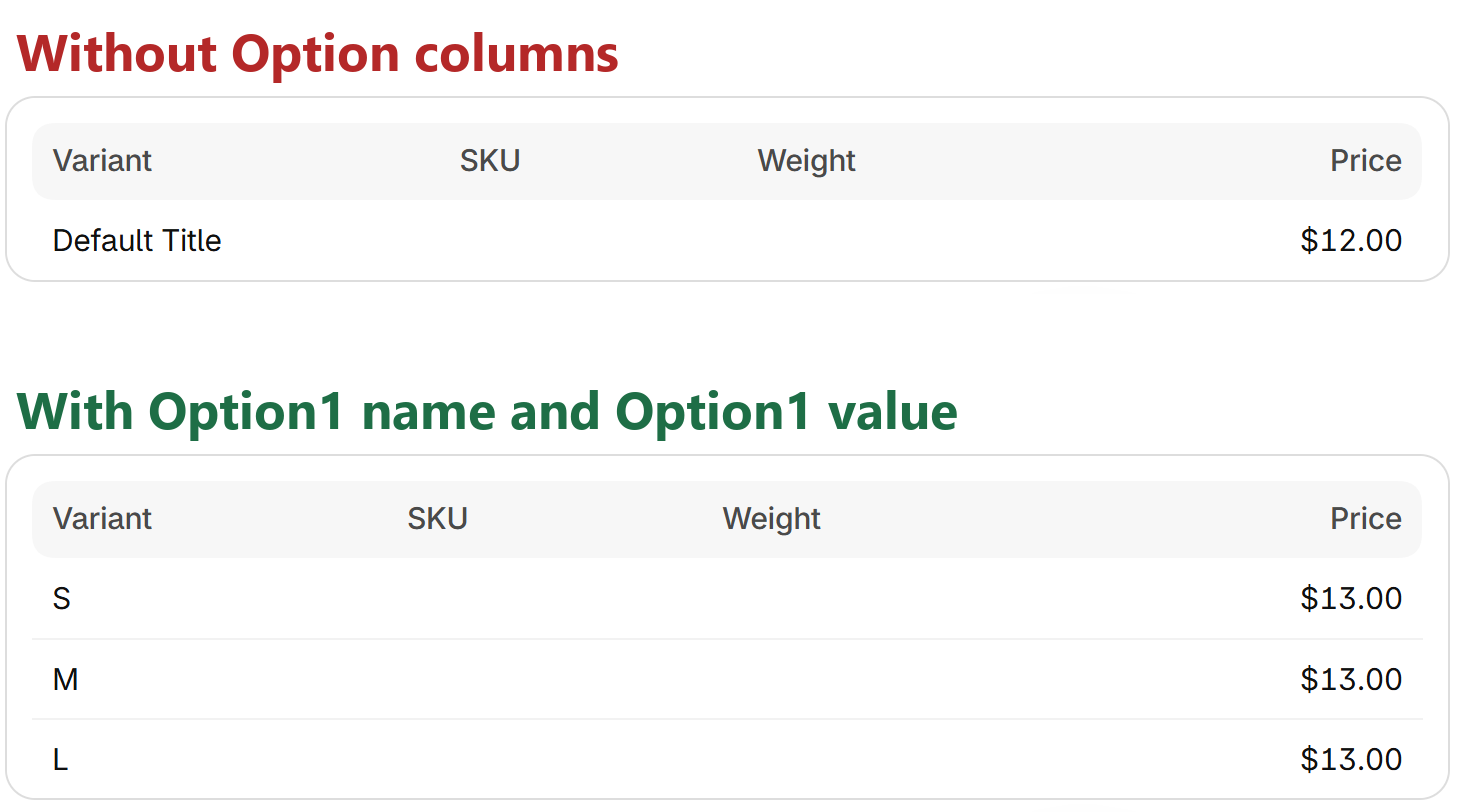
We tried both on a development store with a T-shirt sold in sizes S, M and L. A file with only URL handle, Title, Description and Price brought the description and price back, but Shopify also replaced the three sizes with a single variant named "Default Title", with no SKU and no stock. The same repair with Option1 name and Option1 value on every row brought back the description and all three prices, and kept every SKU and stock count.
Remove every other column. A column you leave out of the file stays as it is on your store, while a blank cell in a column you keep overwrites as blank. Product fields are the one exception on multi-row products: put the description on the first row of each product and leave it blank on that product's other rows. In our test, the description survived with blanks on the M and L rows.
Try it on 2 or 3 products first
Shopify advises partners to test a small subset of changes before a large import, and the same caution pays off here. Make a copy of your repair file that holds only two or three handles, import it, and open those products in your admin. Check that only the fields you meant to fix changed and everything else stayed as it was.
Before you confirm, read the variant table at the bottom of the import preview. If a product that has sizes or colors shows a single variant called Default Title, your file is missing the Option columns. Click Cancel and add them.
Import the full repair file with Overwrite
Return to your product list and click Import. Upload your repair CSV and check the box labeled Overwrite products with matching handles. The box starts unchecked.
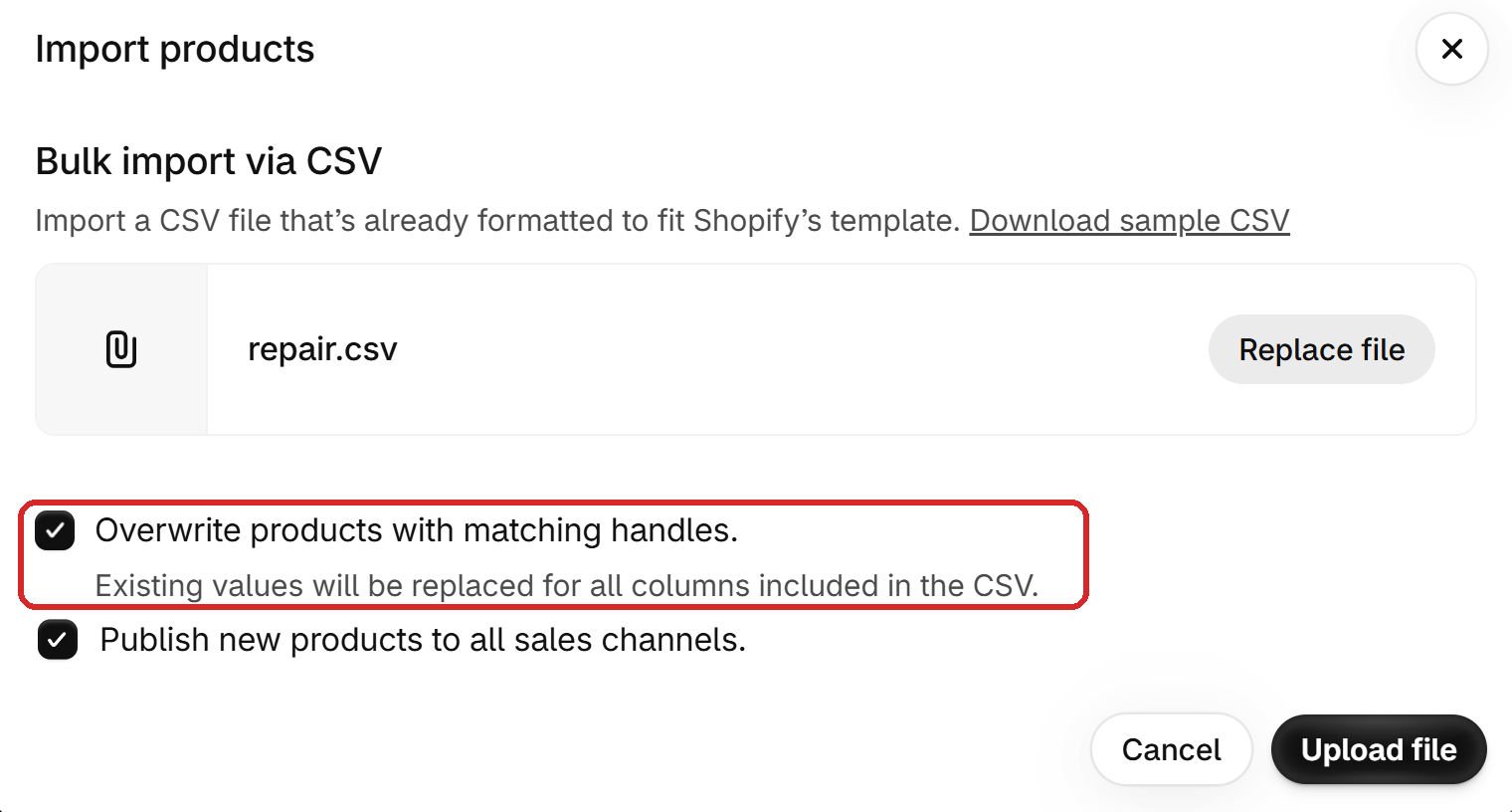
Shopify applies this rule strictly:
"Existing values will be replaced for all columns included in the CSV."
Because your repair file holds only the handle, the title, the option columns and your corrected values, Shopify updates those values and leaves the rest of your data alone.
Check your products by hand
Open several products across different categories in your admin. Confirm that prices, variant structures, descriptions, and inventory quantities match what you expect.
5Make sure there is a next-time copy
Recovering by hand is slow. A copy taken beforehand turns the next mistake into a short repair.
Shopify's help center suggests two ways to back up a store: CSV exports, or a backup app. If you manage data manually, export a full product CSV immediately before starting any import. Keep it untouched until you verify the import succeeded.
Magpie: a daily backup of every product
Magpie is an app built for this exact situation. It takes a backup of every product in your store daily and keeps those backups for 30 days.
If an import breaks your data, open the Magpie backup taken before the event and click Check for changes. Magpie lists every product that changed and what changed (Price, Description, and so on). You can select change types and click Put back on all, or restore one field on one product. Magpie takes a new backup before restoring so the restore can be undone.
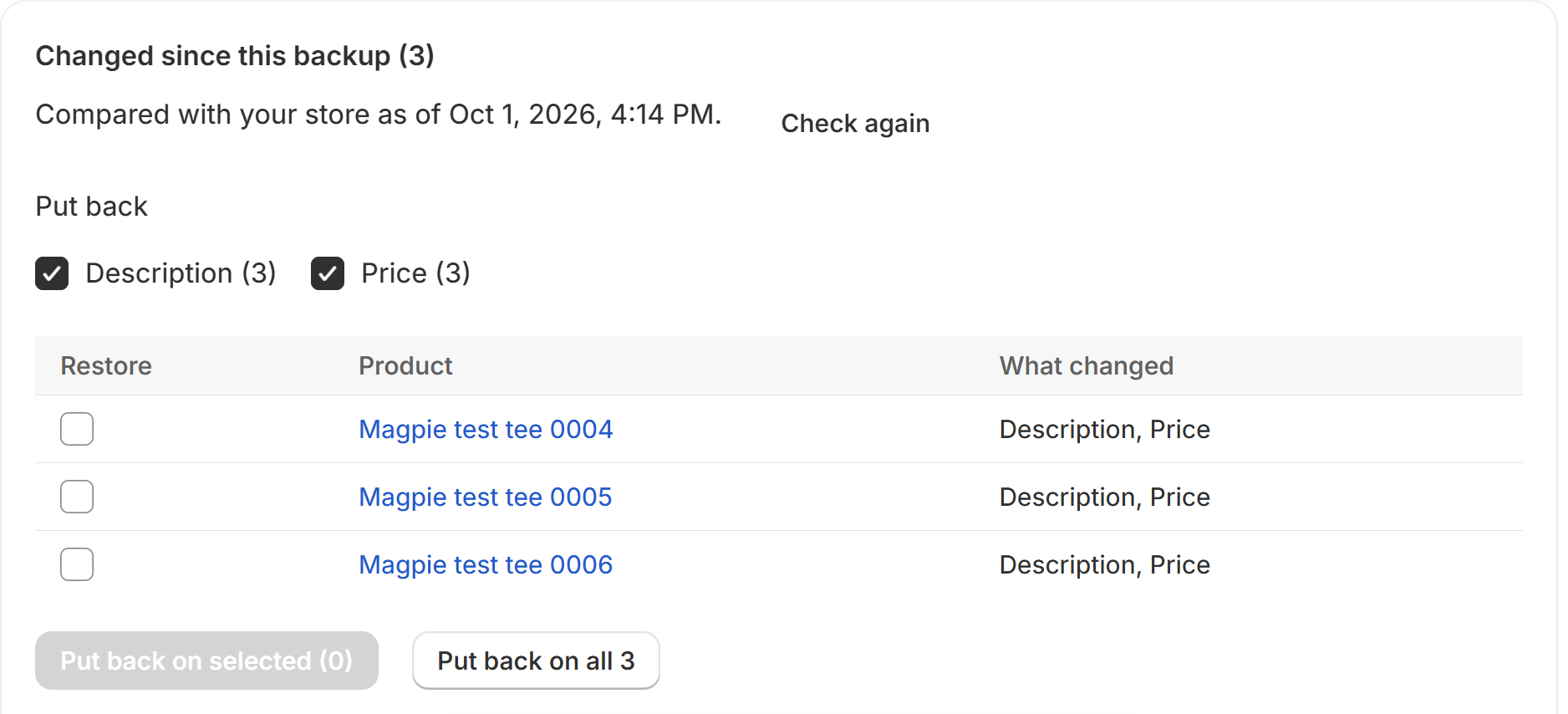
Magpie has one clear limit: it can only restore changes made after it was installed. It does not back up customers or orders.
Magpie costs $9 per month or $90 per year, and includes a 7-day free trial. The app is in review on the Shopify App Store. The link will appear here once review is complete.