 Magpie
How to restore a deleted product in Shopify
Shopify has no trash folder and no restore button for products. Once a product is deleted, Shopify cannot bring it back. You can rebuild it from the pieces that still exist: your activity log, past orders, and old exports. Here is where to find each piece, and how to put the product back without breaking its old links or its collections.
1Check whether it is actually deleted
First, check that the product was deleted rather than archived or set to draft. Open your Shopify admin, go to Products, and select the Archived tab. If the item appears there, it is not deleted.
If it does not appear under Archived or Drafts, the product is gone:
"When you delete a product, it's permanently removed from Shopify. Deleted products can't be restored."
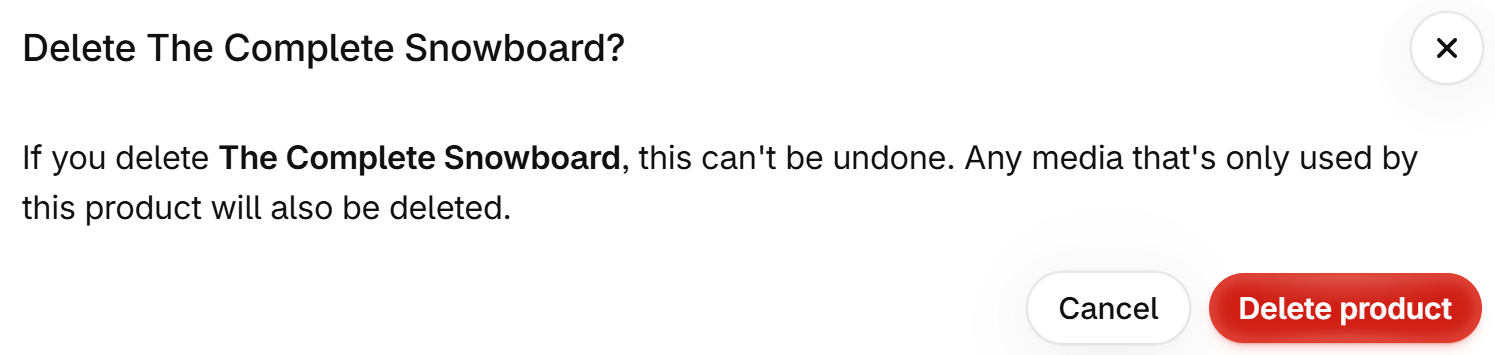
When you click Delete product, the admin warns you once more, and the warning also covers the images:
2Find what was deleted and when
If you do not know the exact title or the time the item disappeared, check your store activity log.
Go to Settings > General > Store activity log. The log records an entry such as "You deleted a product: The Complete Snowboard." with the date and time.
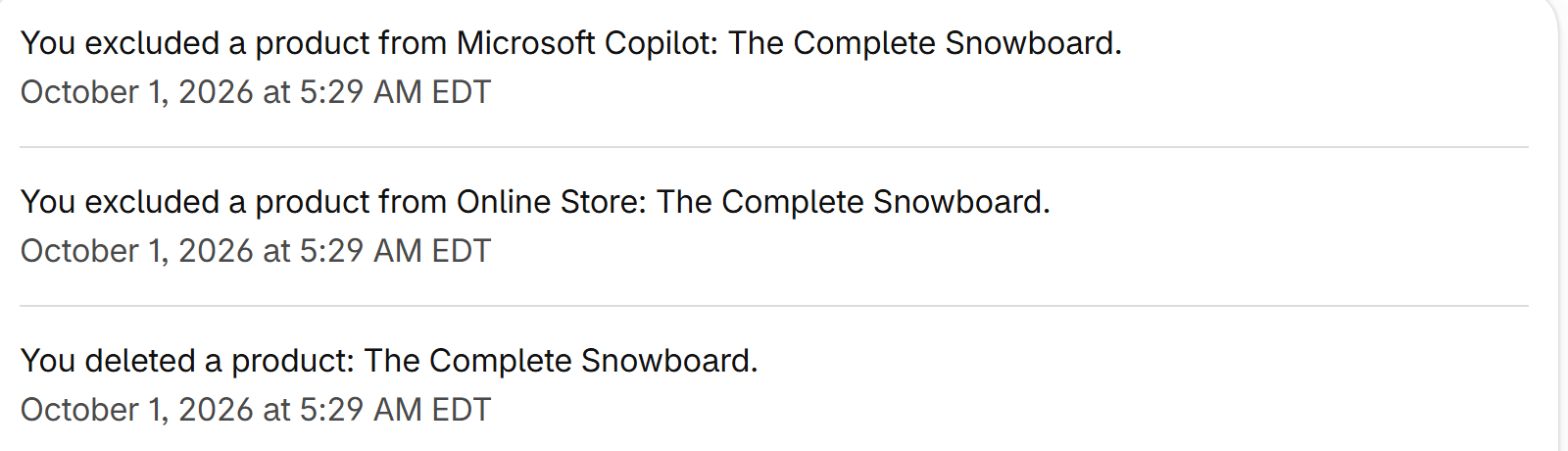
This entry contains no link and holds none of the product's data. It serves only to tell you what was deleted and when.
3Gather the pieces that still exist
You must reconstruct the product using external and historical records. Check three sources:
A previous product CSV export
If you previously exported your catalog to a CSV file, check your computer and your email inbox: larger exports arrive by email instead of downloading.
This file is your best source. It contains descriptions, variants, prices, SKUs, and SEO fields. It also lists image links, but those links point to Shopify's servers, and Shopify deletes a product's own images along with it. On our test store, the image link of a deleted product stopped working. Without a backup app that keeps the image files, you need your original images to upload them again. Magpie keeps its own copy of each image, so a product restored with Magpie gets its images back (more on this at the end of the guide).
Past customer orders
If the product ever sold, open Orders and find an order containing the item.
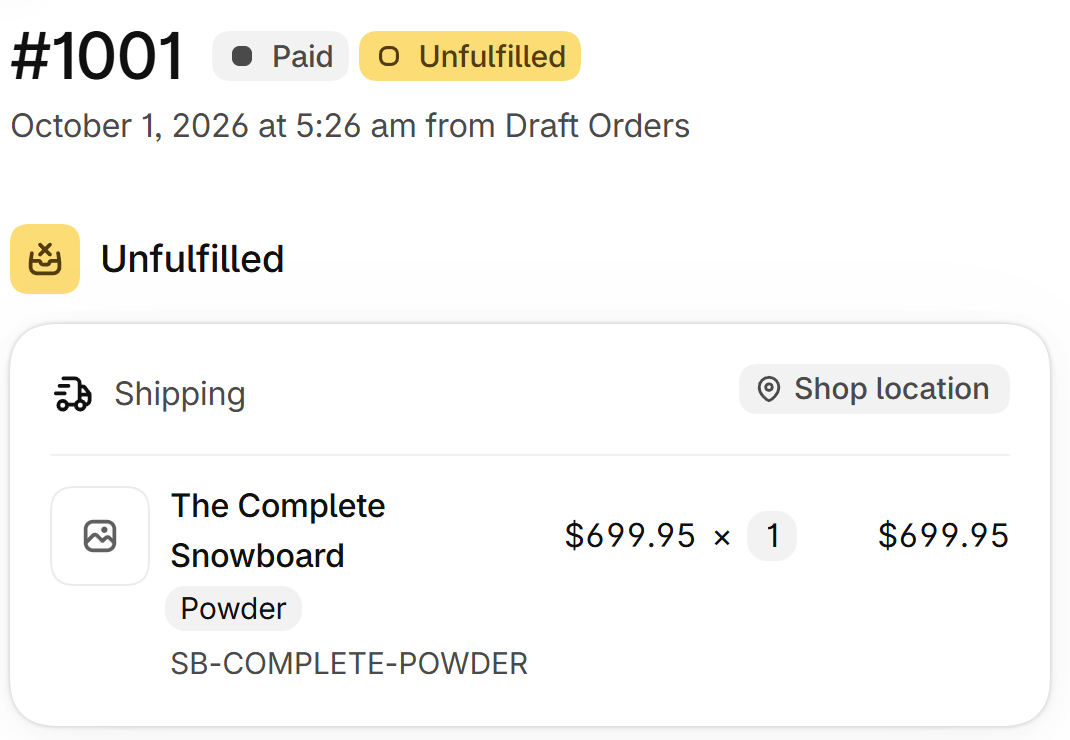
The order line keeps the product title, the variant name, the SKU, and the price. It only keeps variants that sold, and it has no description, images, stock, or collections. The product image on the order is replaced by a blank placeholder.
Public web archives
If you have no export and no orders, search for the missing product URL on public archives like web.archive.org.
A cached page may hold a copy of the public product page, including title, description, images, and price.
4Rebuild the product
You can rebuild the product by hand in the Shopify admin, or by importing its rows from an old CSV export. If you import, keep the Option1 name and Option1 value columns so each size or colour comes back as its own variant. The deleted product no longer exists, so there is nothing to overwrite. For the other CSV rules, read How to undo a bad CSV import in Shopify.
A rebuilt product is a new product with a new ID. To make it work as it did before:
- Match the URL handle: Set the same URL handle as before so old links and Google results keep working. You can find the handle in an old export, or at the end of the product's old web address.
- Re-enter variants and options: Add each variant with its original option names, SKUs, and prices.
- Re-upload images: Add your product images and check that they load. If you restore with Magpie, it puts the images back for you.
- Publish it again: Under Publishing on the product page, choose the same sales channels as before. A product that is on no channel does not show in your store.
- Reassign manual collections: Automatic collections will pick up the rebuilt product by their rules. Manual collections will not. Add the product back to any manual collections by hand.
- Reset stock: Enter your stock counts again.
- Reconnect apps: Apps that link by product ID, such as review apps, may need reconnecting.
5Archive products instead of deleting them
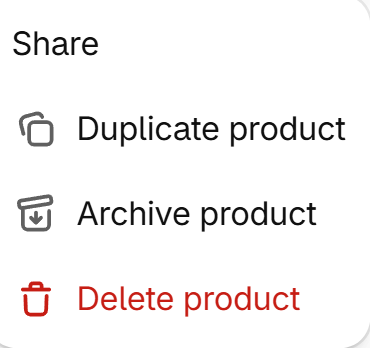
To take a product off your storefront without losing its data, archive it. Archive product sits directly above Delete product in the same menu.
"If you run out of stock or no longer want to display a product for any reason, but you don't want to permanently delete the product from your store, then you can archive the product instead."
An archived product is not gone. You can find it again in the admin:
"If you archive a product, then the product is moved to the Archived tab of the Products page in your Shopify admin."
To archive an item, open the product page, click More actions, and select Archive product.
How Magpie helps
Magpie backs up every product once a day and keeps backups for 30 days.
If a product is deleted, open a backup taken before the deletion. Magpie lists it under "Deleted since this backup". Tick the product and click Restore selected (or Restore all).
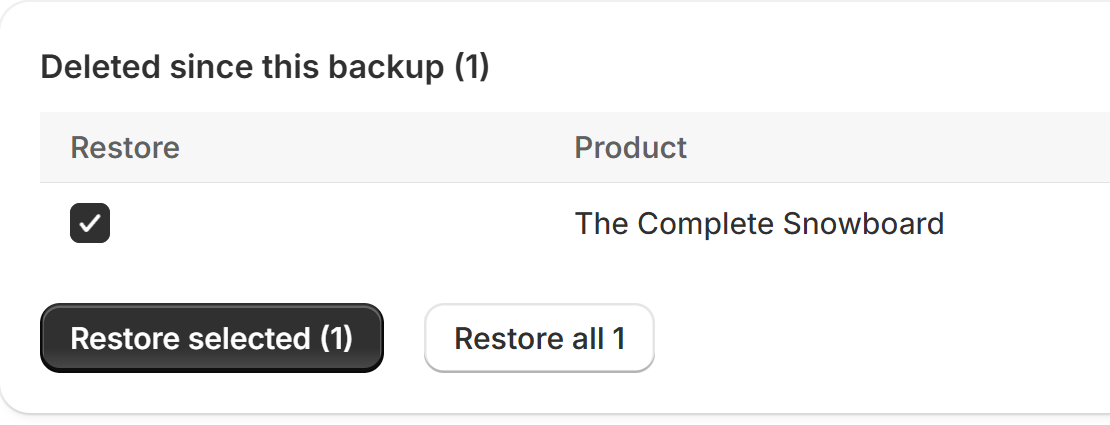
On our test store, restoring a deleted product took under a minute. It brought back title, URL handle, description, tags, SEO fields, metafields, every variant with its SKU, price and stock, its images, and the product's place in the collections you had picked it into.
Four things to check after a restore:
- Images. Magpie keeps its own copy of each image, so images come back even though Shopify deleted the files. The copy is at most 2048 pixels wide, so a very large original comes back slightly smaller.
- Sales channels. Magpie does not put the product back on your sales channels. Open it and choose them under Publishing.
- Stock. Stock comes back as it was at the backup. If you sold some between the backup and the deletion, correct it.
- Other apps. The restored product gets a new ID, so review apps may need reconnecting.
Magpie can only restore products deleted after Magpie was installed and backed them up. Price: $9 per month or $90 per year, 7-day free trial. The app is in review on the Shopify App Store; the link will appear here once review is complete.