 Magpie
How to restore the product order of a Shopify collection
If you arranged a collection by hand and then switched its sort order, switching back to Manually does not bring your order back. On our test store, the products came back in the order of the sort we had picked, and Shopify gave no warning before we saved. Shopify has no undo for this, so the order has to be rebuilt from a record you kept.
1Know what was lost
A manual collection keeps your own order only while its sort is set to Manually:
"Sort manually based on your own preferences."
Picking any other option replaces it:
"In the Collection items section, click the Default sort drop-down menu, and then select a different sort order."
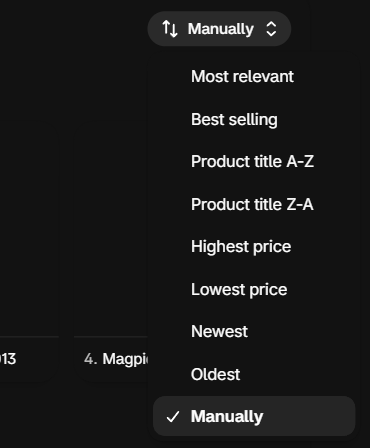
On our test store we built a collection of six T-shirts in a deliberate order (0015 down to 0010), chose Product title A-Z, saved, then chose Manually again and saved. The six products came back as 0010 to 0015, the A-Z order. We repeated it three times with the same result. Before you save, the header shows Discard; after you save, there is nothing to undo.
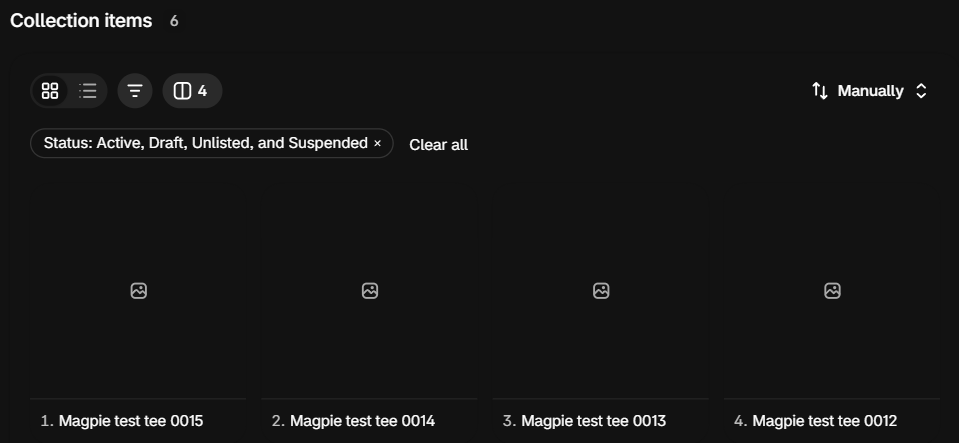
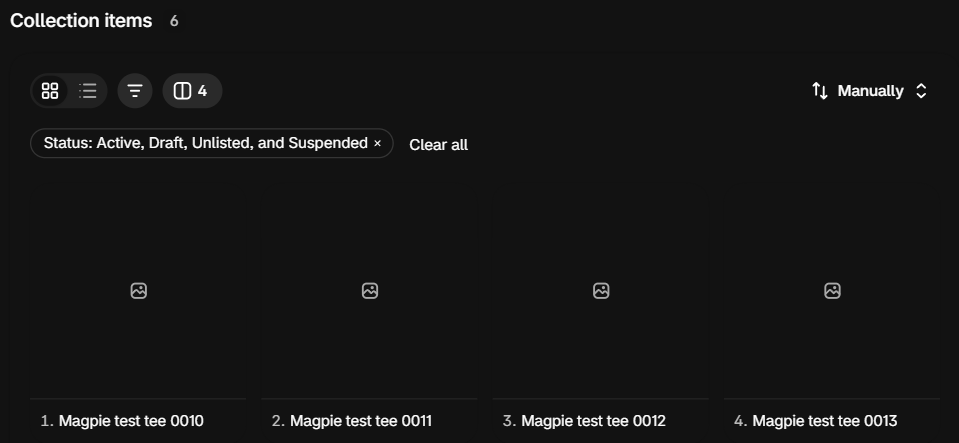
If you have not saved yet, click Discard and stop here.
2Find a record of the old order
Shopify's help pages on collections say nothing about getting a previous manual order back. Look in these places:
A web archive snapshot
If your store is public and has been around for a while, search your collection's address on web.archive.org. A recent snapshot shows the products in the order your customers saw.
Your own notes and campaigns
Merchandising plans, emails, ads or social posts that listed "featured" products often follow the same order as the collection.
3Put the order back by hand
With the old order in front of you, set the sort back to Manually and rebuild it:
"Optional: If you select Manually , then you can rearrange your products in the following ways: Click and hold a product to drag it to a new position in the collection."
For long collections, moving by number is faster than dragging:
"In the To position field, enter a number for the position in the collection that you want to move the products to."
Start with the first row of products, the ones customers see without scrolling, and check the storefront after each batch.
4Protect the order next time
- Screenshot before you sort: Before changing the sort of a hand-ordered collection, take a screenshot or copy the product list.
- Use Discard: When you are only previewing a different sort, leave with Discard, not Save.
- Use a second collection for experiments: To test an A-Z or Best selling order, duplicate the products into a separate collection rather than changing the one on your homepage.
How Magpie helps
Magpie backs up every product once a day and keeps backups for 30 days. Each backup also records the hand-made order of your manual collections.
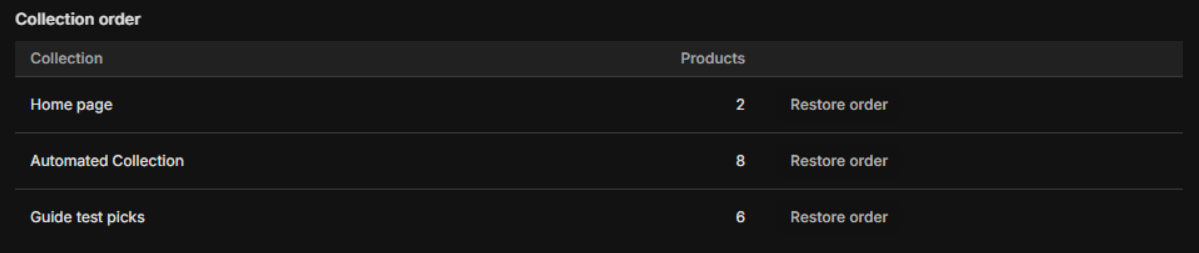
Open a backup taken before the sort change and click Restore order next to the collection. Magpie sets the collection back to Manually and puts each product back in its saved position. Products that have left the collection since are skipped.
On our test store, after the A-Z switch had scrambled the six T-shirts, one click on Restore order brought back 0015 down to 0010, the exact order in the backup.
Magpie can only restore an order it backed up after it was installed. Price: $9 per month or $90 per year, 7-day free trial. Install Magpie from the Shopify App Store.