 Magpie
How to fix stock after a bad inventory CSV import in Shopify
An inventory CSV import sets your stock to the numbers in the file. If the file was old or wrong, those numbers are now live, and Shopify has no undo. The way back is in Shopify's adjustment history: every changed variant has a line showing how far the import moved it, so you can work out the old count and set it again.
1Check whether the import really changed anything
Shopify protects an inventory import only when the file carries both columns, On hand (current) and On hand (new):
"When your CSV includes both On hand (current) and On hand (new) columns, Shopify uses safety validation to prevent accidental overwrites."
On our test store we imported a stale file: nine T-shirt variants whose real stock was 3, 4 and 5, with On hand (current) still at 8 and On hand (new) at 8. The confirmation screen gave no warning about the mismatch:
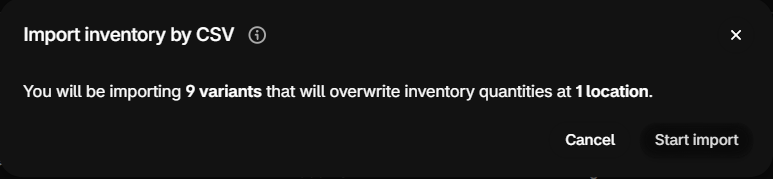
After Start import, the admin only showed "Inventory importing". When we read the stock afterwards, nothing had changed: the check had refused all nine rows. Shopify sends the details of refused rows by email:
"Optional: If some rows fail validation, then you receive an email with details about the failed rows."
So before you repair anything, open a few of the products and look at their stock. If the numbers are still right, the guard caught the file.
The guard is gone when the file has no On hand (current) values:
"Caution If you need to skip safety validation in emergencies, then clear the On hand (current) column and use only On hand (new) . Use this carefully, as it removes protection against accidental overwrites."
The Available export format does not carry that column either:
"This CSV format doesn't provide protection against accidental overwrites."
When we imported the same stale file with On hand (current) left blank, all nine variants were set to 8 at the location in the file. The other location, not in the file, kept its stock.
2Read the old numbers from the adjustment history
Shopify logs every stock change. Open a product, click a variant, and under Inventory click View adjustment history. Each line shows the change and the new total:
"The numbers under each of the inventory states display the adjusted quantity first, and the new total quantity second."

The count before the import is the new total minus the change. Write it down for each variant and each location the file touched. A few limits:
"you can't view the inventory adjustment history for all of the variants simultaneously."
The history page also shows one location at a time, so a file covering several locations means one visit per variant per location. And it reaches back 180 days, which is enough for a recent import.
3Set the old numbers back
Do not undo the damage by importing an older file without its guard. That is how the damage happened.
A few variants: type them in
On each variant page, set the on-hand count at each location to the number you worked out.
Many variants: a repair file that keeps the guard
Start from Shopify's own sample, linked as Download a sample CSV in the import dialog. Keep its header exactly: our test file without the Option2 Value and Option3 Value columns was refused with "Invalid CSV Header: Missing headers Option2 Value, Option3 Value." For each variant and location, put the current wrong count in On hand (current) and the old count in On hand (new). If anything sells while you prepare the file, the guard refuses that row instead of overwriting the sale. Check those rows by hand.
Mind the sales since the import
If orders came in after the bad import, the counts moved again. Starting from the old count, subtract what sold since the import, or the repair will put back stock you no longer have.
4Protect your next import
- Import the All states format: It keeps On hand (current), so a stale file is refused instead of applied.
- Never clear On hand (current) to make an import pass: The refusal is the warning.
- Import soon after exporting: The longer a file waits, the more rows the guard will refuse, and the more tempting it gets to remove it.
How Magpie helps
Magpie backs up every product once a day, including stock per location, and keeps backups for 30 days.
Open the backup from before the import and click Check for changes. Magpie lists every product whose stock changed. Stock is not put back unless you ask, because putting back the backup's counts would also undo any sales made since the backup.
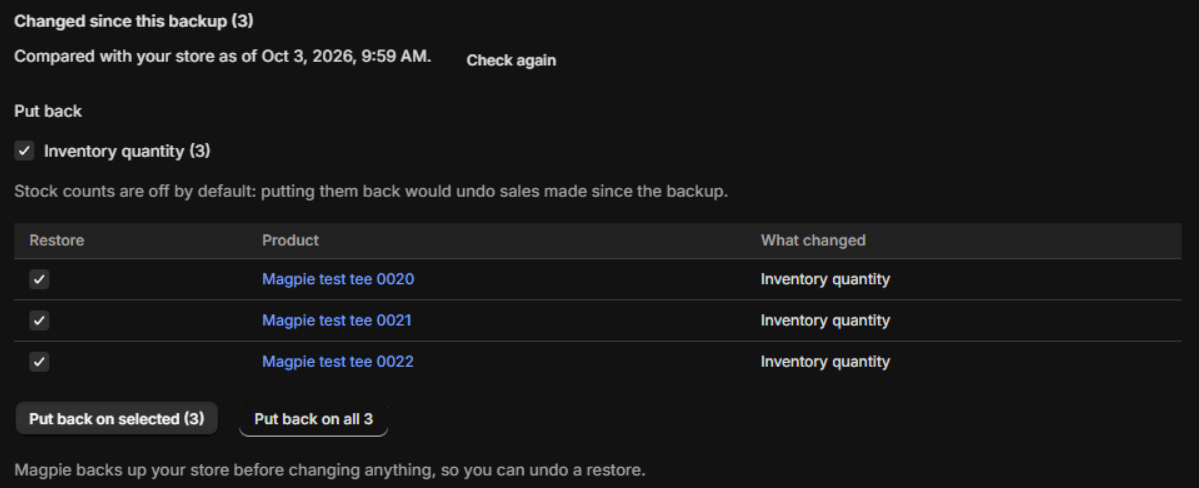
Tick Inventory quantity, choose the products, and click Put back on selected. Magpie takes a new backup first, so the restore itself can be undone.
On our test store, Magpie found the three T-shirts the import had changed and put all nine variants back to 3, 4 and 5 at the imported location in one step. The other location was left as it was.
Magpie can only restore stock it backed up after it was installed. Price: $9 per month or $90 per year, 7-day free trial. Install Magpie from the Shopify App Store.